Discord is a free communication platform that lets users connect through text, voice, and video chats in a fun and interactive way. It’s especially popular among gamers, podcasters, artists, and other group communities for building connections and staying engaged.
Maybe you’re looking for a way to record your Discord screen and audio while playing your favorite League of Legends game, or capture casual chats with friends for a podcast. You’re in the right place! In this blog, we’ll explore whether Discord has a built-in screen recorder and introduce three of the best Discord recording tools.
Tables of Content:
Also Interested: How to Make Creative Discord Profile Picture Online>>
Part 1. Does Discord Have a Recorder?
No. Discord doesn't have a built-in, native recorder to capture screen, audio or calls. Additionally, there is no way for automatic recording or saving of conversations. So if you want to save your recordings, you'll need to use third-party Discord recorders.
Fortunately, there are various Discord recorders for you to choose from. Whether you're in need of a professional, free or ease-to-use one, you can find one! In the following part, read the list of three best Discord recorders we've already packed for you. Let's dive in!
Craig Bot - Free Discord Audio Recorder
Craig is a popular Discord voice bot suitable for multi-track recording. When added to your server, it creates a separate audio file for each speaker, making it easy to cut, trim, or edit each track independently. It can record sessions up to 6 hours long and stores the files for 7 days. After recording, you can export your audio in various formats, including FLAC, MPEG-4 AAC, and more.
Discord Audio Recorder - Craig Bot
Key Features of Craig Bot
How to Record Discord Audio with Craig Bot
Visit craig.chat and click Invite Craig to your Discord server. Then select your server and grant necessary permission.
Use the Join command, and Craig will enter the channel and begin recording. It will display “[RECORDING]” in its nickname to notify everyone that recording is in progress.
To finish your recording, type Stop in the text channel and Craig will leave the channel.
Craig will send you a private message with a direct link where you can download your audio. Choose the audio format and the speaker's audio track to download.
OBS - Versatile Discord Recorder for Professional
OBS is a free, open source screen recorder designed for screen and video recording as well as real-time video streaming. It works on Windows, macOS, and Linux, and is especially popular for recording gameplay, tutorials, and online meetings. When recording Discord sessions, OBS offers flexible options—you can capture audio, video, full calls, or specific windows, with support for up to 4K quality. Thanks to its feature-rich dashboard, it has become a favorite among gamers and live streamers for recording on-screen activities.
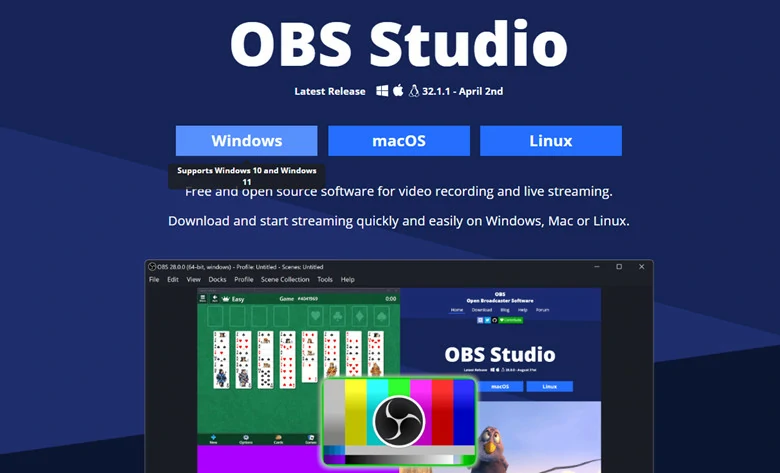
Discord Audio Recorder - OBS Studio
Key Features of OBS Studio
How to Record Discord with OBS Studio
FlexClip - Free Discord Audio and Screen Recorder
FlexClip makes it easy to capture Discord activities. No software download or curve learning required. Just access its screen recorder through your browser and it begins to record Discord session - whether it's gameply, Discord calls, tutorial, family meeting and more. With this tool, you can freely record up to 60 minutes per each session and restart without time limits to get as many as clips you want.
In addition, it features a built-in video editor that lets you easily polish your Discord recordings—trim clips, add text, transcribe audio into captions, include annotations, reduce background noise, and more. With FlexClip, you don’t need to switch between tools, as it offers an all-in-one recording and editing experience.
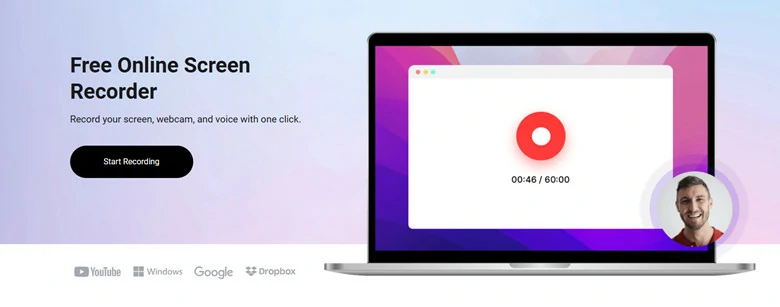
Discord Audio Recorder - FlexClip
Key Features of FlexClip
How to Record Discord with FlexClip
Frequently Asked Questions About Discord Recorder
1. How can I record individual audio tracks?
If you want to record multiple separate audio tracks from your Discord sessions, consider using OBS or Craig Bot. Alternatively, you can record a single audio track with FlexClip and then split it into multiple tracks using its built-in video editor.
2. Can I record Discord with Screen?
Yes. Whether it's your gameplay highlight, interesting podcast or any Discord session you want to capture with screen, try Discord screen recorders like OBS and FlexClip to record your precious onscreen activities effortlessly.
3. Can I record Discord on mobile?
Yes. To record Discord on mobile, you can use third-party recording software like AZ screen recorder or record by inviting the Craig bot to your server.
4. How long can I record a Discord session?
The length of a Discord recording depends on the method you use. Craig Bot can record up to 6 hours per session and stores files for 7 days. OBS offers virtually unlimited recording time, limited only by your computer’s storage space. FlexClip, on the other hand, supports recordings of up to 60 minutes per session, with no limit on how many sessions you can create.




FlexClip AI Video Maker
Reach professional-quality videos faster with easy editing tools, templates, and smart AI.
Start Now for Free
Hot & Trending
-

Best Ways to Find Music in YouTube Videos
-

Instagram Story Video Quality Bad After Upload? Fix It!
-

How to Repost Video on TikTok & How to Remove TikTok Repost
-

Improve Video Quality Online: 3 AI Video Quality Enhancers You Can't Miss
-

4K Convert to HD 1080p without Watermark: Best 4k Video Converters
-

Best 8 Free Video Editors - No Download Required
-

Top 13 Birthday Video Makers with Music and Effects Free
-

How to Search Filters on TikTok & Use a Filter You See - TikTok Filter Guide